1. Introduction
What is SQL Data Collector?
SQL Data Collector is a monitoring tool for teams that operate more than a handful of Microsoft SQL
Server instances. Rather than logging into each server to check whether backups ran, whether a drive
is filling up, or whether a server is behind on patches, you point SQL Data Collector at the estate
once and it keeps a continuously‑updated picture for you.
It is built as a single .NET 8 application that ships as a Windows MSI. The MSI installs a
Windows Service that does two jobs at the same time:
- The collector — a background worker that connects to each monitored SQL Server on a schedule and
gathers the data it needs (it does not require any agent or software to be installed on the
monitored servers).
- The web interface — a local website (Blazor Server) that presents everything the collector has
gathered.
The application keeps its own small database (created automatically) on a SQL Server of your choosing.
Everything it collects is stored there.
Who is it for?
- DBA teams who need a single pane of glass across many SQL Servers.
- Infrastructure / operations staff who care about drive space, patch levels, and uptime.
- Security and compliance reviewers who need an auditable record of who has access to what, and a
way to certify that access periodically (the Permissions Audit and attestation features).
What it monitors
| Area |
What you get |
| Backups |
Per‑database backup freshness (full / differential / log), timeliness rings, and a fleet roll‑up. |
| Restore points |
How far back you could recover each database, and what's standing in the way (RPO analysis). |
| Backup trends |
How backup sizes and durations change over time. |
| Database sizes |
Per‑database size history and growth. |
| Drive space |
True volume capacity and free space (via WMI), fill/free rates, and runway forecasting. |
| Capacity changes |
An audit trail of when a drive's total capacity changed. |
| C: drive files |
Warns when database files sit on the OS drive. |
| SQL versions |
Build/patch level per server, with end‑of‑life dates. |
| SQL Agent jobs |
Failed and flaky jobs across the fleet. |
| Failure history |
A record of backup job failures over time. |
| Permissions audit |
A point‑in‑time and historical record of SQL permissions and role membership, with change tracking, review, and sealed attestation. |
| Security checks |
A set of configuration/security posture checks per server. |
Key concepts
A few terms appear throughout the app and this guide:
- Parent server / collector database — the SQL Server that hosts SQL Data Collector's own
database (where it stores everything it collects). This is separate from the servers you monitor.
- Monitored server — a SQL Server you have added for monitoring. Each one can be enabled/disabled
and has its own connection settings.
- Collection pass — one cycle in which the collector connects to each enabled server and refreshes
its data. Passes run on a configurable interval (default every 15 minutes).
- Rollup snapshot — to keep the web interface fast, the headline numbers (e.g. the Overview cards)
are pre‑computed on a short interval and served to every browser from the same snapshot.
- Dashboard — a viewer page in the left sidebar. Access to each dashboard can be granted per user.
- Monitor — a named collection activity (backups, drive space, SQL versions, …). Individual
monitors can be excluded per server, and their health is tracked on the Collection Health page.
How collection works (at a glance)
                ┌─────────────────────────────────────────────┐
                │            SQL Data Collector host           │
                │   (Windows Service: collector + web UI)       │
                │                                               │
   browser ───▶ │  Web interface  ◀── Rollup snapshots          │
   :5080        │       ▲                     ▲                  │
                │       │                     │                  │
                │  Collector DB  ◀──── Background collector       │
                └───────────┬───────────────────────┬───────────┘
                            │ stores                 │ reads (no agent installed)
                            ▼                         ▼
                   (Parent SQL Server)      Monitored SQL Servers
                                            (PROD / UAT / DEV / DW …)
The collector reads from system views, msdb, and WMI on each monitored host. Because it pulls data
remotely, the only prerequisite on a monitored server is a login with enough rights to read the
relevant metadata (and, for true drive capacity, remote WMI access on the host).
Continue to 2. Installation & first‑run setup »
2. Installation & first‑run setup
This chapter walks through installing SQL Data Collector and completing the one‑time setup wizard.
2.1 Prerequisites
- A Windows host (Windows Server or Windows 10/11) to run the service. It does not have to be a
SQL Server itself.
- Network access from that host to:
- a SQL Server that will host the collector's own database (the parent server — this can be
one of your existing servers), and
- the SQL Servers you want to monitor.
- A login that the service can use to reach the parent server and the monitored servers. This can be
the service account (Windows authentication) or a SQL login — configurable per server.
- For true drive‑capacity figures, the service account needs remote WMI access on each monitored
host. (Without it, the app still reports the volumes that host SQL data/log files.)
2.2 Install the MSI
- Run the installer,
SQL Data Collector.msi.
- Accept the licence agreement (EULA) and choose an install location.
- The installer registers and starts a Windows Service:
- Service name:
SQLDataCollector3
- Display name:
SQLDataCollector 3
- By default the web interface listens on
http://localhost:5080.
You can confirm the service is running from Services (services.msc) or with PowerShell:
Get-Service SQLDataCollector3
Tip — checking the version. The running build is shown in the bottom‑left of the navigation
sidebar (for example v5.29.1.0). After any upgrade, confirm the sidebar shows the new version so
you know the new build is the one actually running.
2.3 First‑run setup wizard
The first time you browse to the web interface (or any time the database isn't yet configured), you're
taken to the Setup page. It has three short sections.
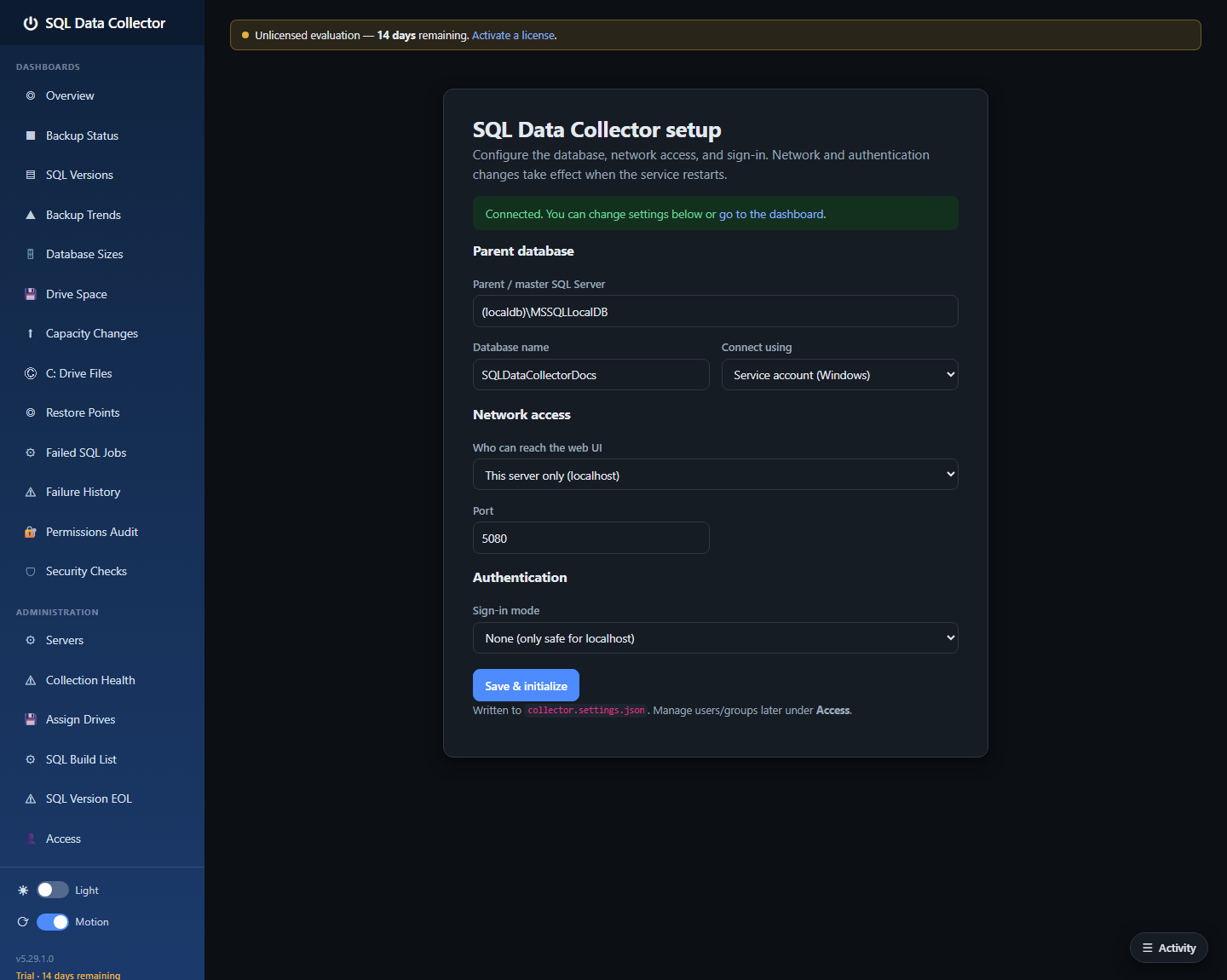
Parent database
| Field |
What to enter |
| Parent / master SQL Server |
The SQL Server that will host the collector's database, e.g. SQLHOST or SQLHOST\INSTANCE. |
| Database name |
The name for the collector's database (created automatically if it doesn't exist), e.g. SQLDataCollector. |
| Connect using |
Service account (Windows) uses the service's own identity; SQL login lets you supply a username and password. |
Network access
| Field |
What to enter |
| Who can reach the web UI |
This server only (localhost) keeps the interface private to the host; Reachable on the LAN binds all interfaces so colleagues can browse to it. |
| Port |
The TCP port for the web interface (default 5080). |
Authentication
| Mode |
Use when |
| None |
Only safe for localhost‑only access — no sign‑in is required. |
| Windows / Active Directory |
Users sign in with their AD username and password (validated by an LDAP bind, so any browser works). You nominate an initial admin user or group. |
| Local accounts |
Accounts are stored in the collector database. You create an initial admin username and password. |
Click Save & initialize. The app creates the database if needed, applies its schema, and — if you
changed the network or authentication settings — prompts you to restart the service so they take
effect.
Network and authentication changes always require a service restart; database changes do not.
2.4 After setup
Once the database is ready you land on the Overview page. It will be largely empty until you add
servers and the first collection pass runs. Head to Administration → Servers to add your first
monitored server (see 3. User guide and
4. Administration).
2.5 Where settings live
Operator‑editable settings are stored in collector.settings.json next to the installed service
executable. Most can also be changed from the in‑app Settings page (admins only). Changes to the
file take effect the next time the service restarts. Notable settings include the collection interval,
parallelism, logging destinations, drive‑space cadence/retention, and the credential‑encryption key
that protects stored SQL passwords.
Keep a backup of the credential‑encryption key. It is generated on first run and stored in
collector.settings.json. Without it, stored SQL‑login passwords cannot be decrypted.
Continue to 3. User guide — the dashboards »
3. User guide — the dashboards
This chapter walks through every viewer dashboard in the left sidebar, in order. Each one answers a
specific operational question. Throughout, the status colours are consistent: green = healthy,
amber = warning, red = problem, purple = broken/missing, grey = not applicable.
The screenshots in this chapter come from a demonstration fleet of eight servers
(SQLPROD01, SQLPROD02, SQLPROD‑CLUSTER\NODE1, SQLUAT01, SQLDEV01, SQLDW01, SQLAPP01\FINANCE, SQLBI01)
with representative data.
3.1 Overview
The Overview answers: "Is anything wrong, and what should I look at first?"
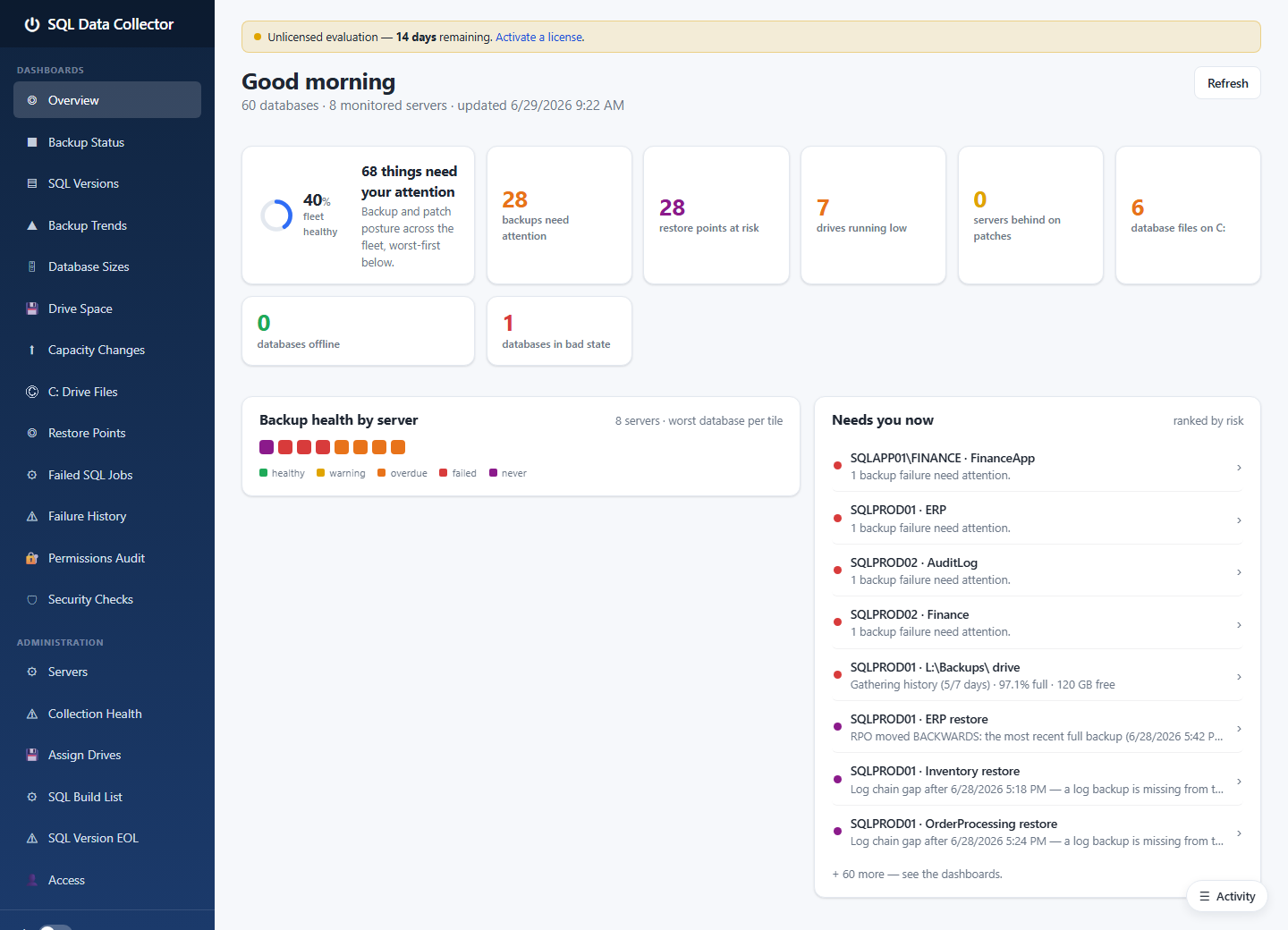
The top of the page is a row of headline cards:
- A fleet‑health ring with the percentage of databases that are completely healthy and a count of
how many things need attention.
- Backups need attention, restore points at risk, drives running low, servers behind on
patches, and database files on C: — each links straight to the relevant dashboard.
- Databases offline and databases in bad state.
Below the cards:
- Backup health by server — one tile per server, coloured by its worst database, so you can spot a
problem server instantly.
- Needs you now — a single, risk‑ranked worklist that mixes every kind of issue (backup failures,
broken restore chains, full drives, …) so you always have a clear "do this first" list.
- SQL version landscape — a quick summary of the build/patch spread across the fleet.
The headline numbers are served from a rollup snapshot that refreshes on a short interval, so the
page stays fast no matter how large the estate.
3.2 Backup Status
Answers: "Did every database get backed up, and on time?"
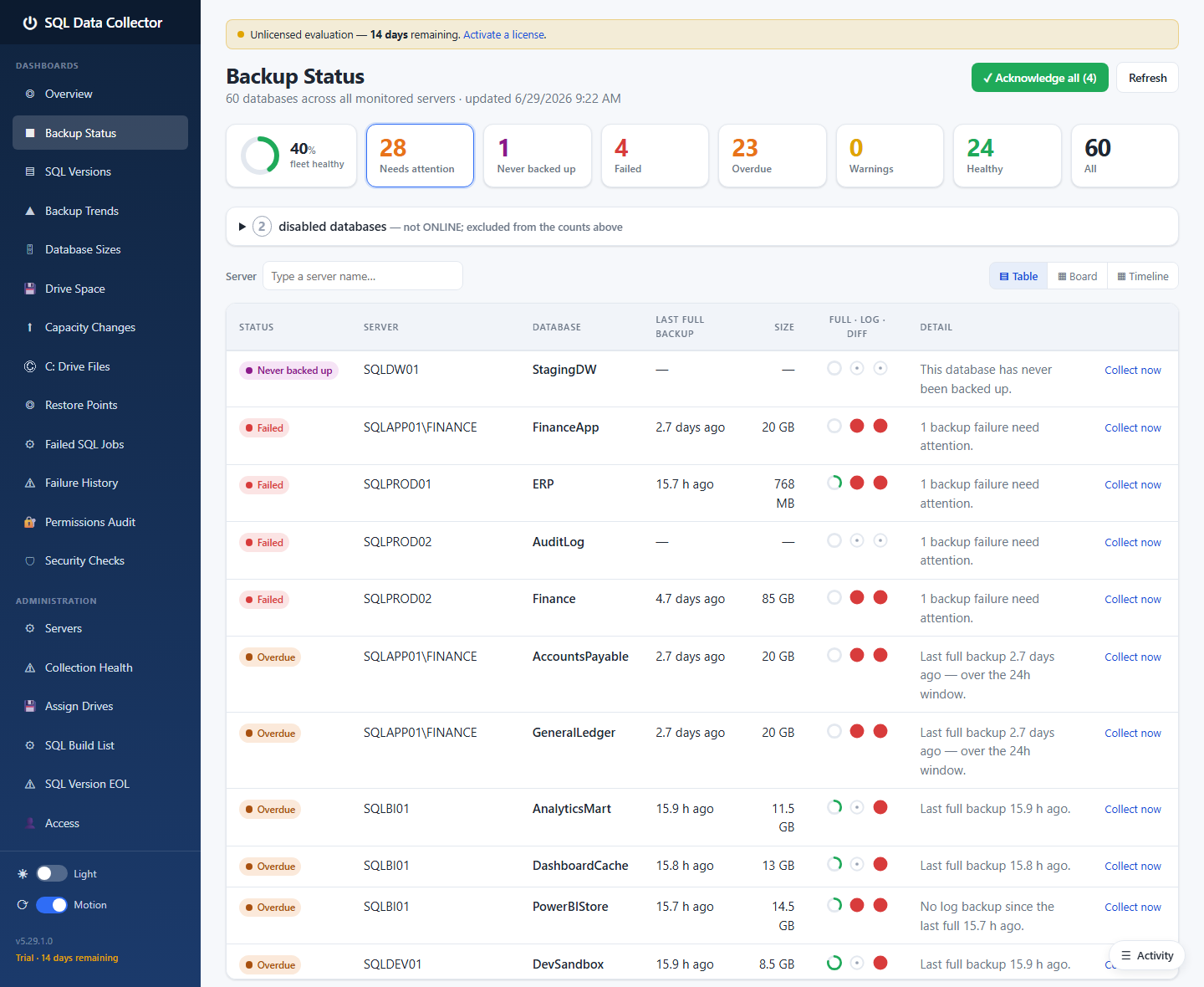
KPI cards across the top summarise the fleet: healthy, needs attention, never backed up,
failed, overdue, and warnings. Below, each database is a row showing:
- A status pill (Healthy / Warning / Overdue / Failed / Never backed up).
- The server, database, and last backup age.
- Three independent timeliness signals rendered as small dials:
- Full — a countdown ring that turns red once the database passes its per‑server "overdue after"
window (default 24 h).
- Log — for FULL/BULK_LOGGED databases, how fresh the last log backup is (green → amber → purple
→ red). Grey for SIMPLE recovery, where log backups don't apply.
- Diff — how fresh the most recent differential (or full) is.
The worst of the three signals (plus any anomalies) drives the overall status. Use the Table /
Board / Timeline toggle (top right) to switch between a sortable table, a Kanban‑style board grouped
by status, and a timeline view. A server filter narrows the list.
3.3 SQL Versions
Answers: "What build is each server on, and is any of it out of support?"
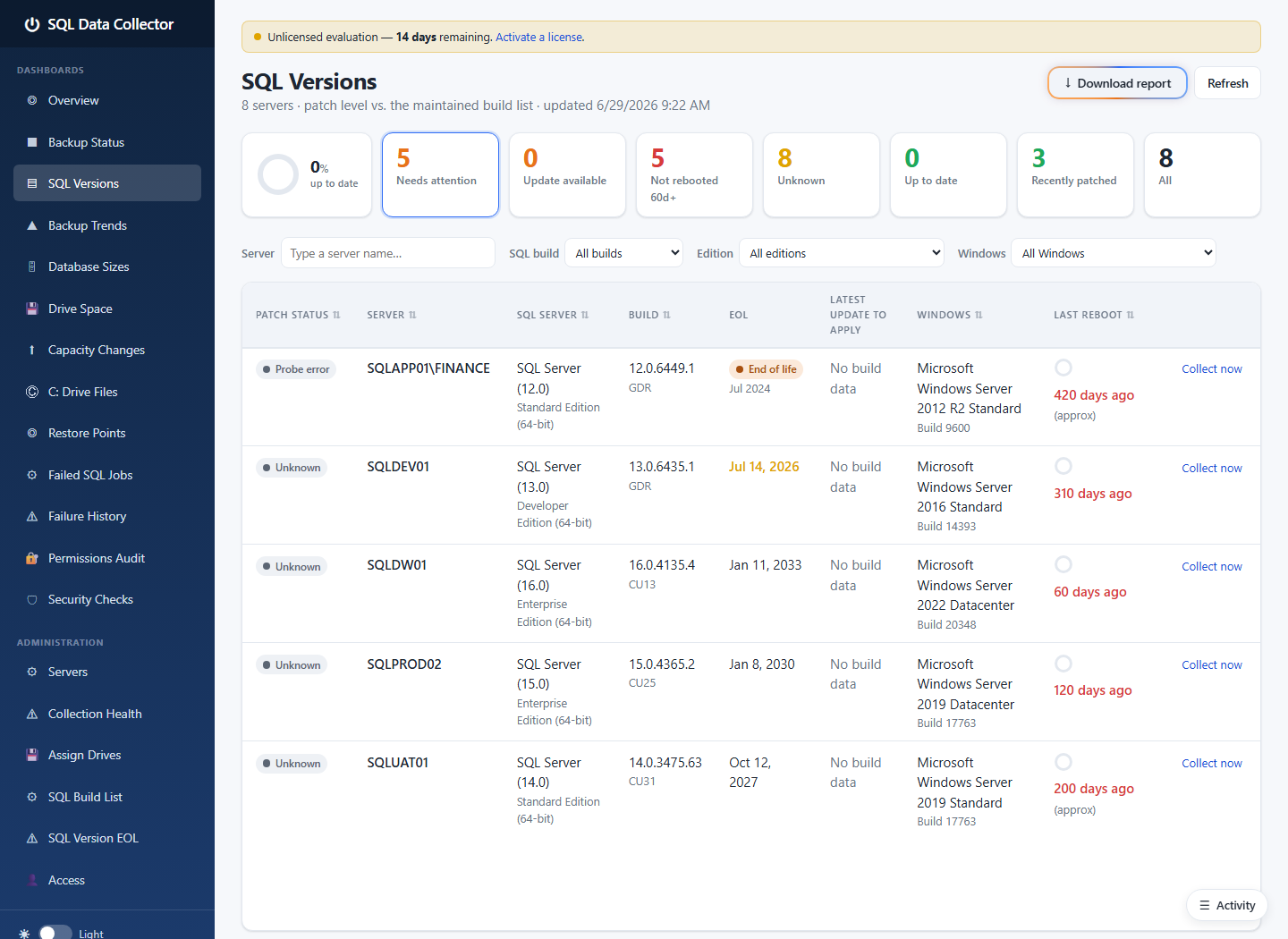
Each server shows its product version, build/patch level, edition, and Windows OS.
The end‑of‑life column flags lifecycle risk:
- A red End of life badge when the major version is past its extended‑support date.
- An amber badge when end of life is approaching (within a year).
This is how you catch, for example, a server still on SQL Server 2014 (out of support) or a 2016
instance whose support window is about to close. The build data and the end‑of‑life dates are both
maintained from the Administration pages (see 4. Administration). Use the
Download report button to export a copy.
3.4 Backup Trends
Answers: "How are backup sizes and durations changing over time?"
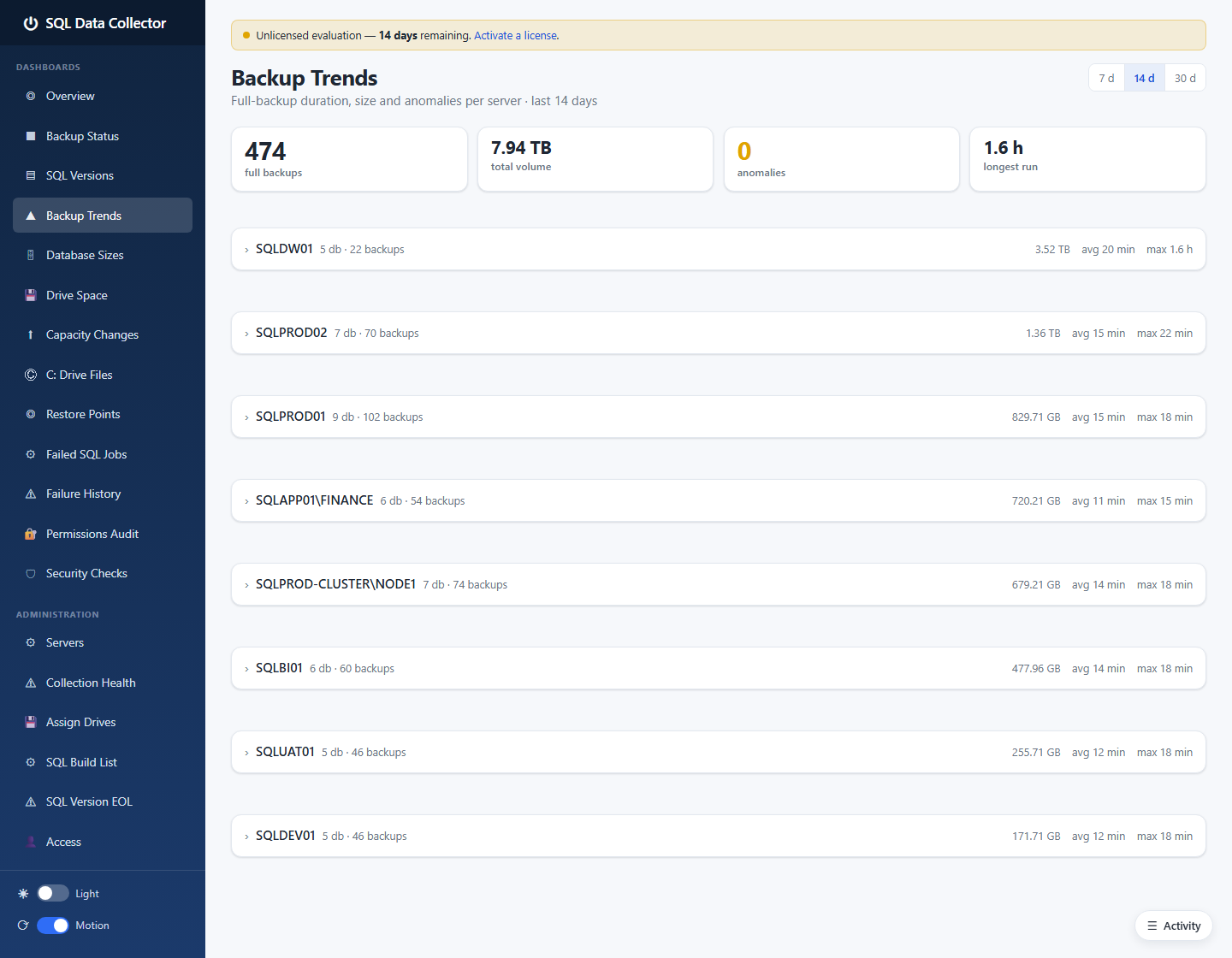
For a chosen window (7 / 14 / 30 days), the page shows the number of full backups, total
volume, any anomalies (a backup that grew far more than expected versus the previous one), and
the longest run. Each server expands to reveal its databases with average and maximum durations and
total size. This is the place to spot a database whose backups are quietly ballooning, or a job whose
runtime is creeping up.
3.5 Database Sizes
Answers: "How big is everything, and how fast is it growing?"
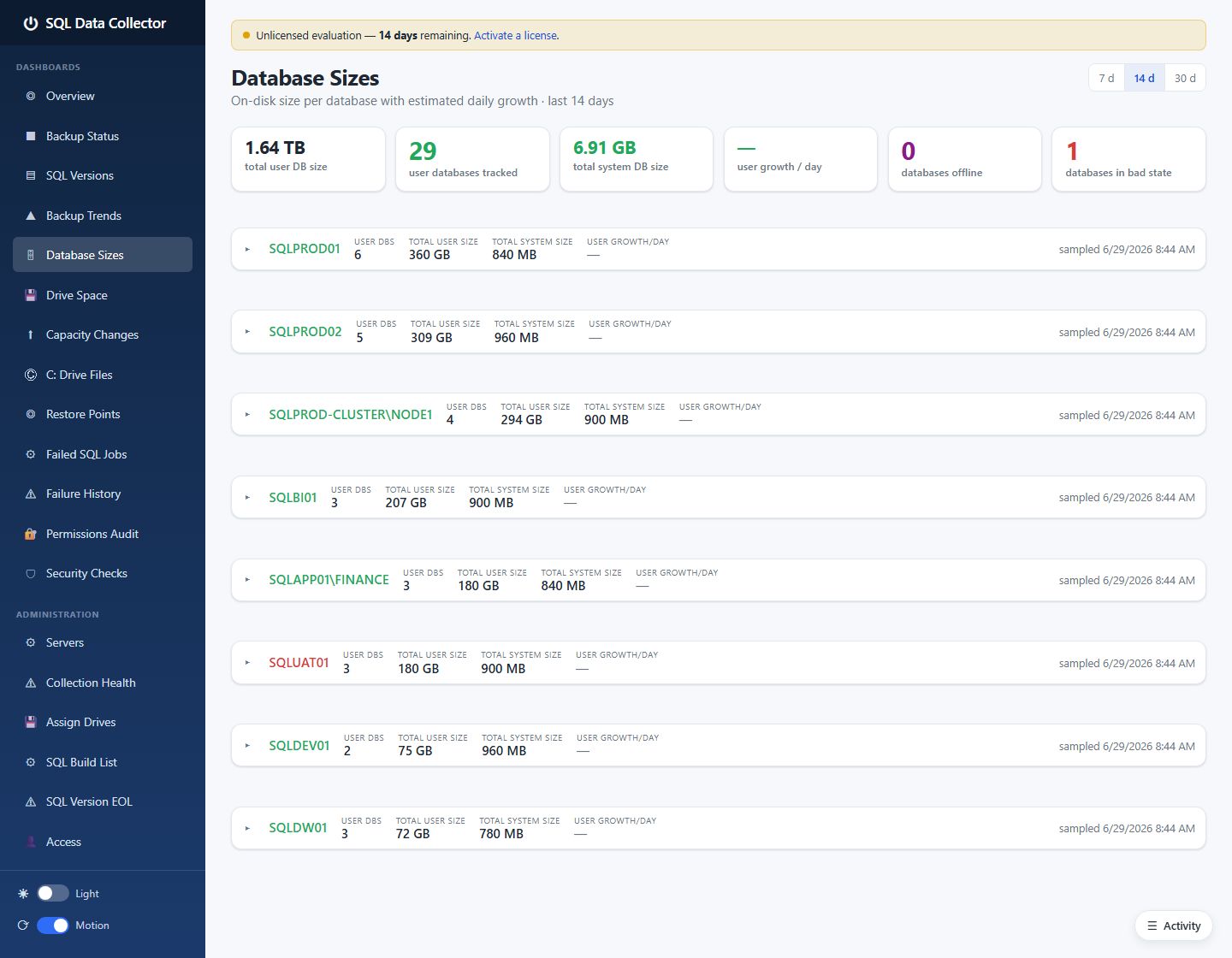
A fleet total plus an estimated daily growth figure sit at the top, with per‑server and
per‑database sizes and small trend sparklines beneath. Because the collector keeps a size history, the
growth figures and sparklines reflect real movement over weeks, not a single snapshot — useful for
capacity planning and for justifying storage requests.
3.6 Drive Space
Answers: "Which volumes are running out of room, and when?"
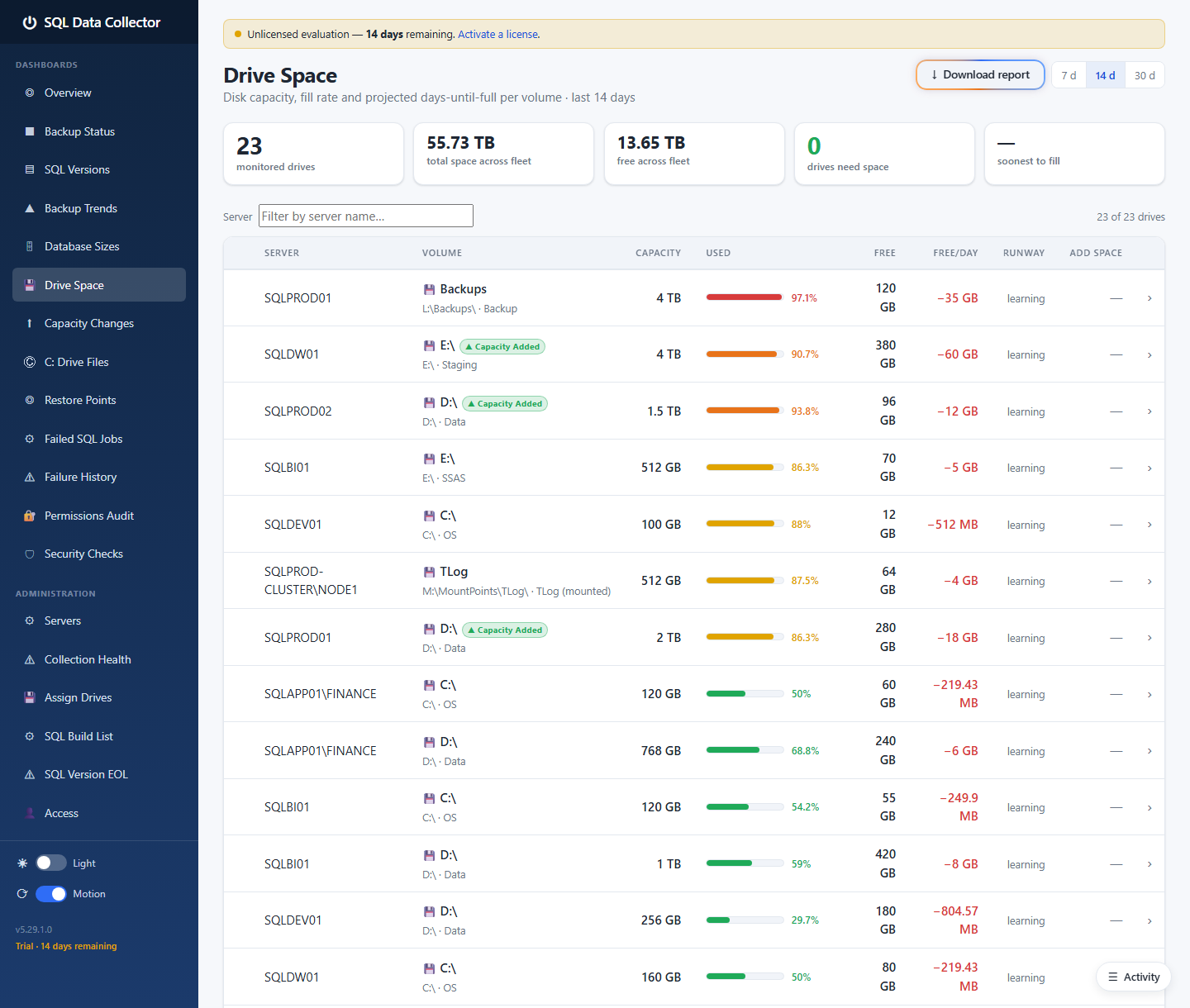
Every volume on every monitored host is listed with its true capacity and free space (read via
WMI, so it includes backup drives and folder‑mounted volumes that hold no SQL files). For each volume
you get:
- A used/free capacity bar and percentage.
- A Free/day rate — coloured red when the volume is filling and green when free space is being
recovered.
- A runway estimate (how long until full at the current rate).
Drives over ~90 % used are highlighted so they jump out. The Download report button exports the
current picture. (To stop monitoring specific volumes on a server — for example shared cluster
volumes — use Assign Drives under Administration.)
3.7 Capacity Changes
Answers: "When did a drive's total size change?"
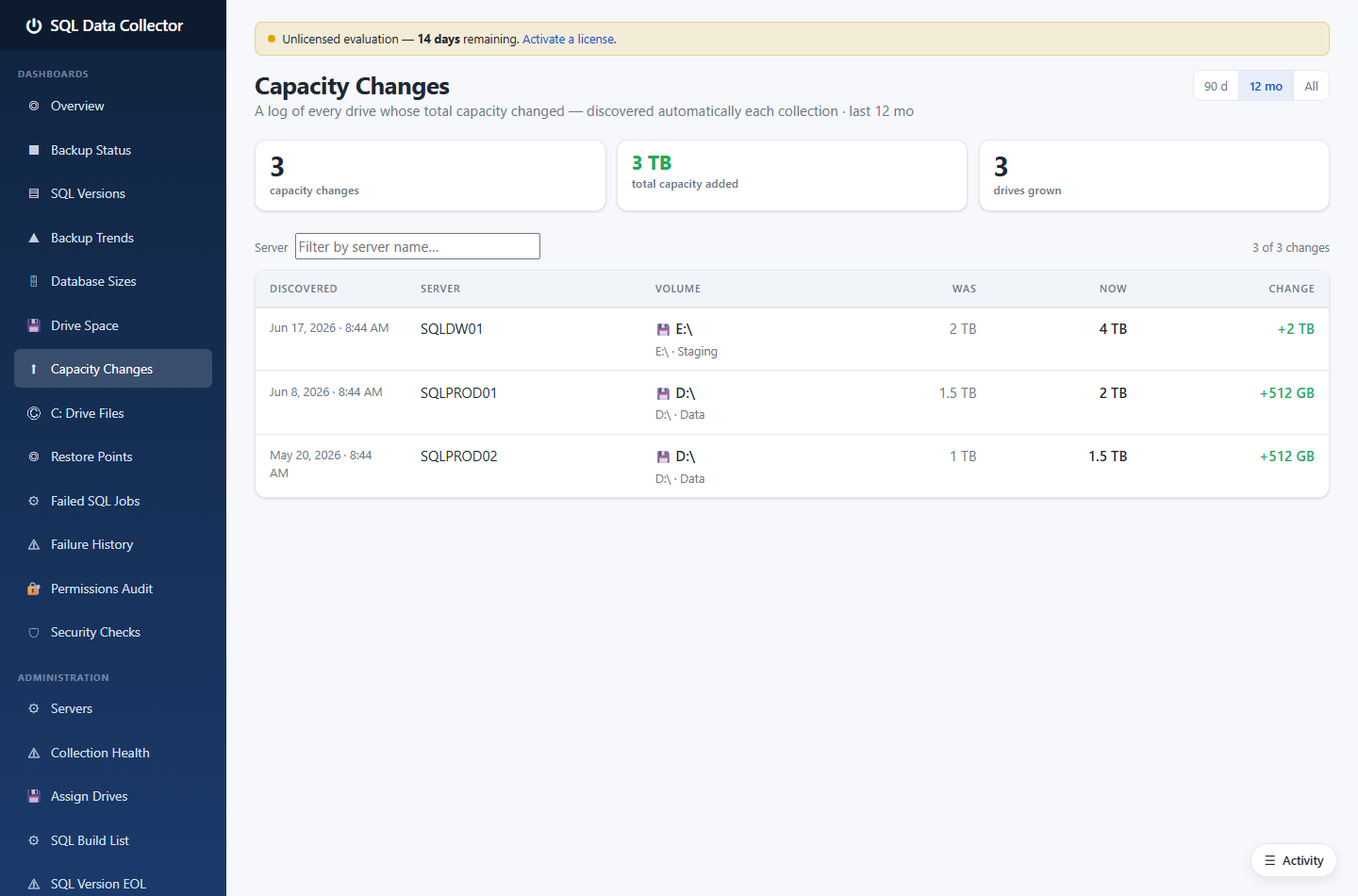
Whenever a volume's total capacity changes between collection passes (a disk was grown, a LUN
resized), SQL Data Collector records it. The page lists when it was discovered, the server and
volume, and the was → now sizes with the delta. It's a lightweight audit trail that answers
"did someone add space to that server, and when?" without digging through tickets.
3.8 C: Drive Files
Answers: "Are any database files sitting on the OS drive?"
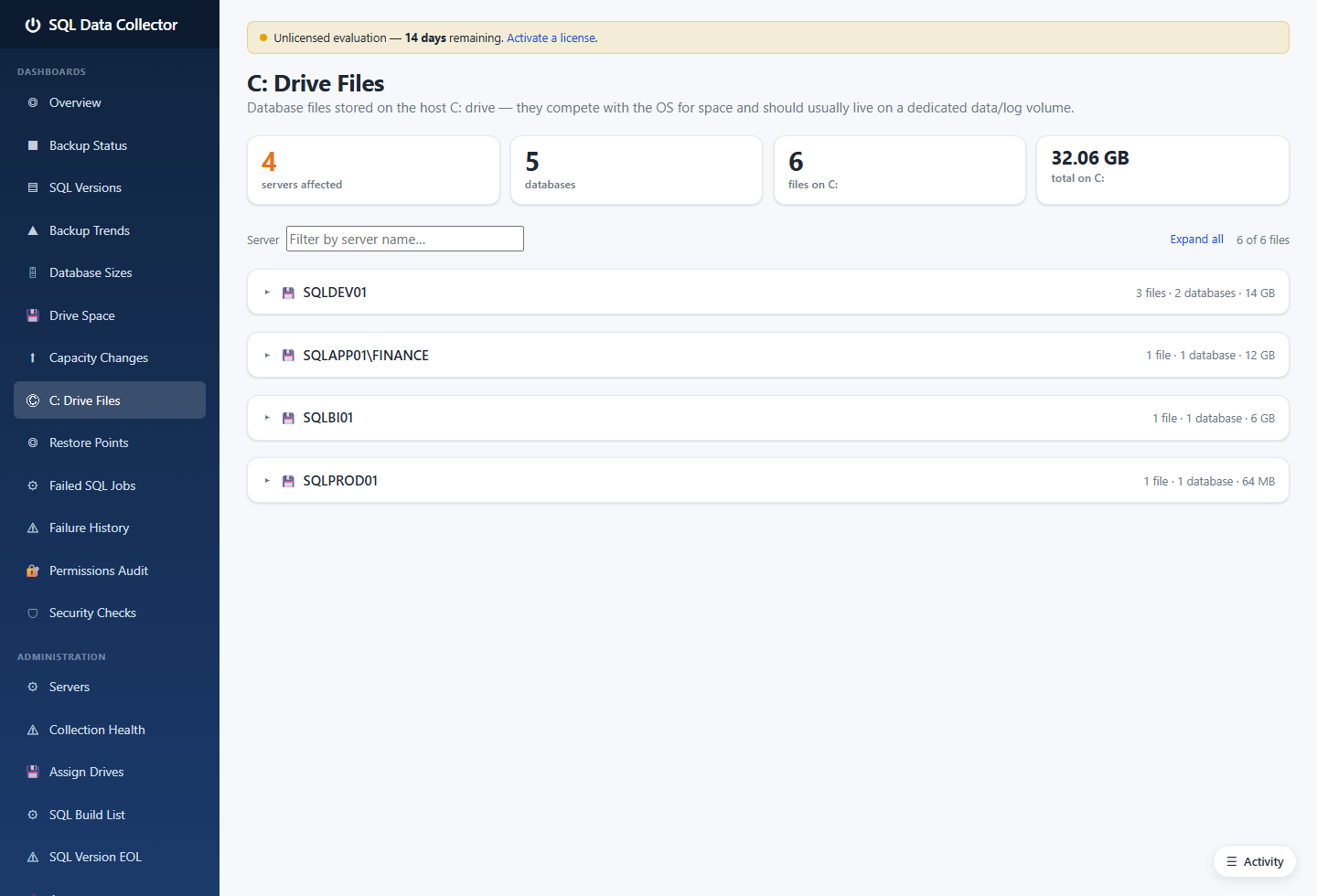
Database data, log, or filestream files on the host C: drive compete with the operating system for
space and are a common cause of avoidable outages. This page lists every server, database, and file
found on C:, grouped per server, with a positive "all clear" state when there are none.
3.9 Restore Points
Answers: "How far back could I actually restore each database, and what's blocking it?"
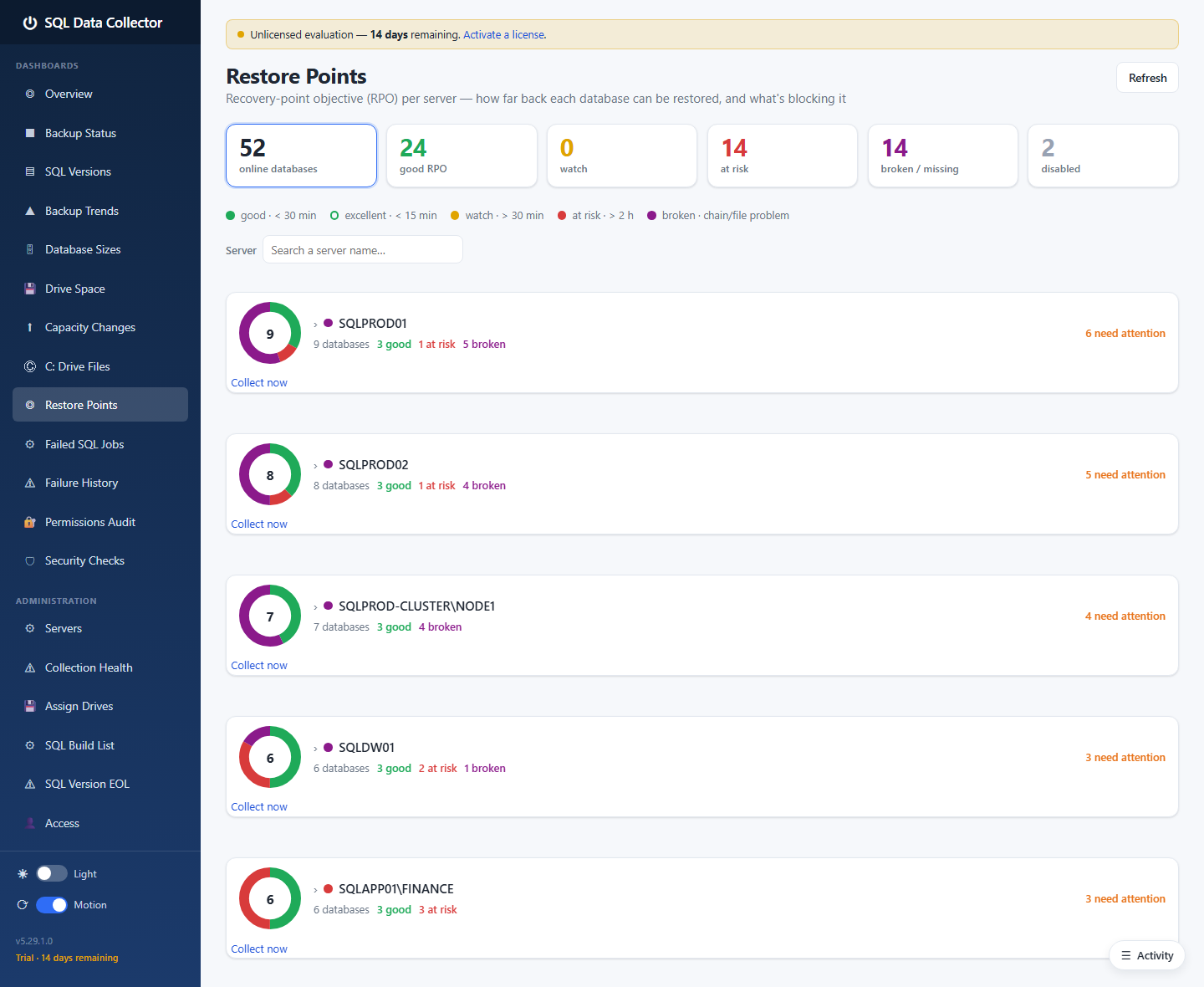
This is recovery‑point‑objective (RPO) analysis. KPI cards summarise the fleet — online databases,
good RPO, watch, at risk, broken/missing, and disabled. Each server is a ring
showing how its databases split across those bands:
- good / excellent — a recent restore point exists (within minutes).
- watch / at risk — the most recent restore point is getting old.
- broken — the recovery chain is broken or a backup file is missing, so the database can't be
restored to a current point regardless of how recent the last backup looks.
Expanding a server lists each database with exactly what it needs (for example "a log backup is
missing from the chain" or "no full backup exists"). System databases are evaluated against their own,
more relaxed window.
3.10 Failed SQL Jobs
Answers: "Which SQL Agent jobs are failing across the fleet?"
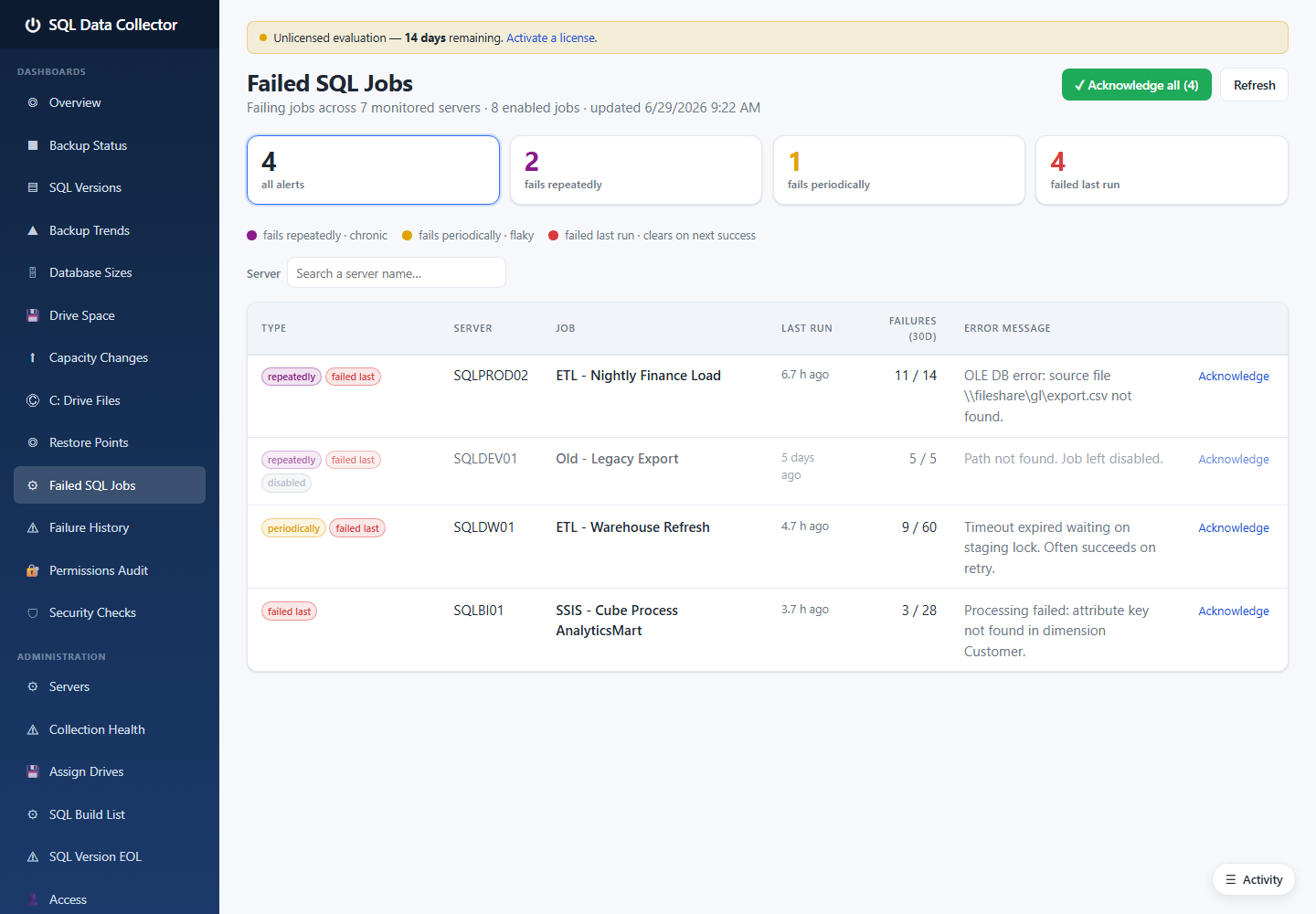
Every monitored server's SQL Agent jobs are gathered and the problem ones surfaced here, classified as:
- fails repeatedly (chronic) — purple,
- fails periodically (flaky) — amber,
- failed last run (clears on the next success) — red.
Each row shows the server, job, last‑run time, a failure count over the last 30 days, and the actual
error message. A job whose most recent run succeeded drops off automatically (its history is still
on Failure History). You can Acknowledge a job to quiet it, or Acknowledge all. Backup jobs are
handled separately so they don't double‑report with Backup Status.
3.11 Failure History
Answers: "What backup failures have happened, and were they resolved?"
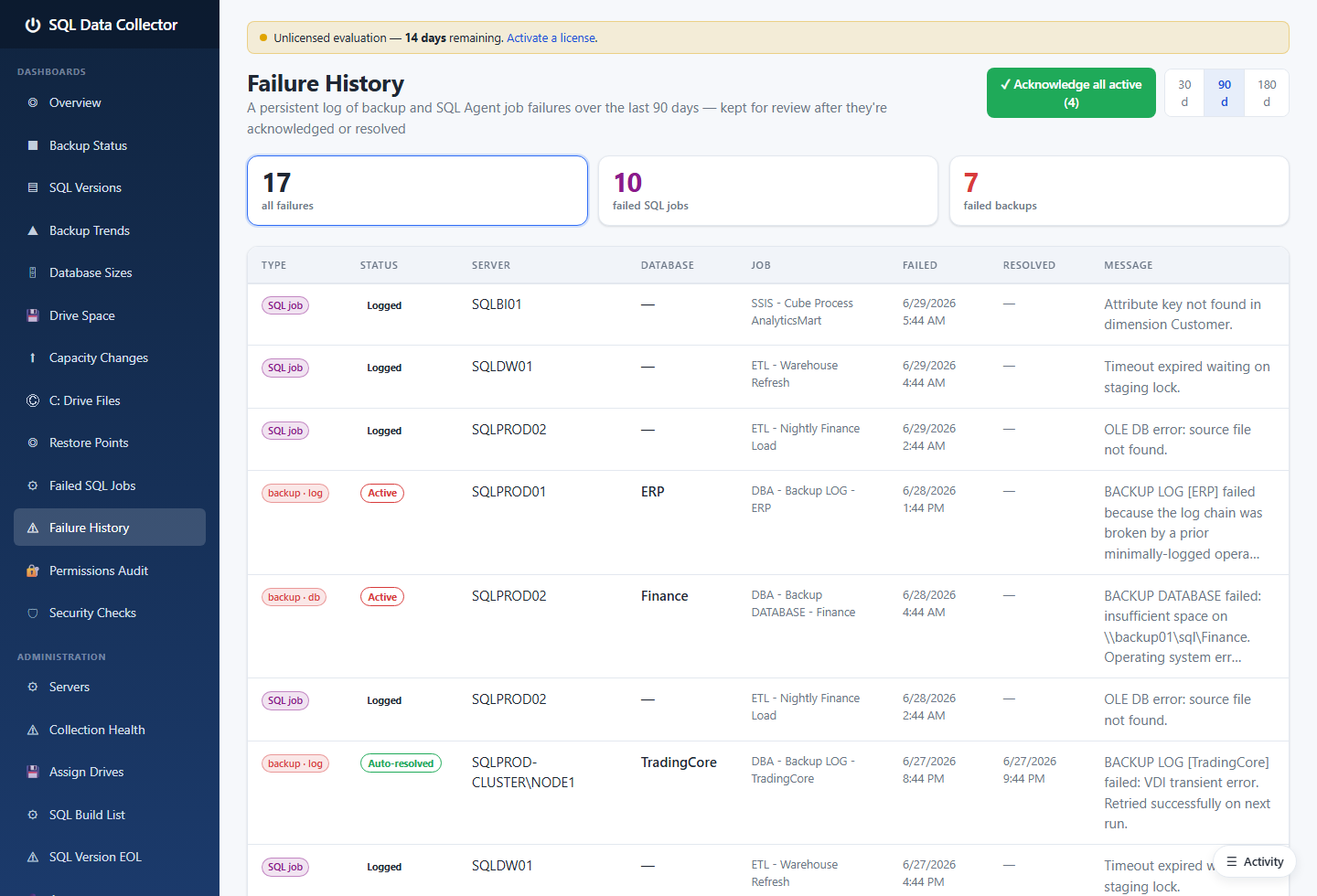
Where Backup Status shows the current state, Failure History is the log over time of individual
backup‑job failures: when each one failed, on which server/database, the job, and the error. Failures
that later auto‑resolved are marked, and you can acknowledge outstanding ones. It's the page you
open when someone asks "has this been failing all week or just today?"
3.12 Permissions Audit
Answers: "Who has access to what, what changed, and can we certify it?"
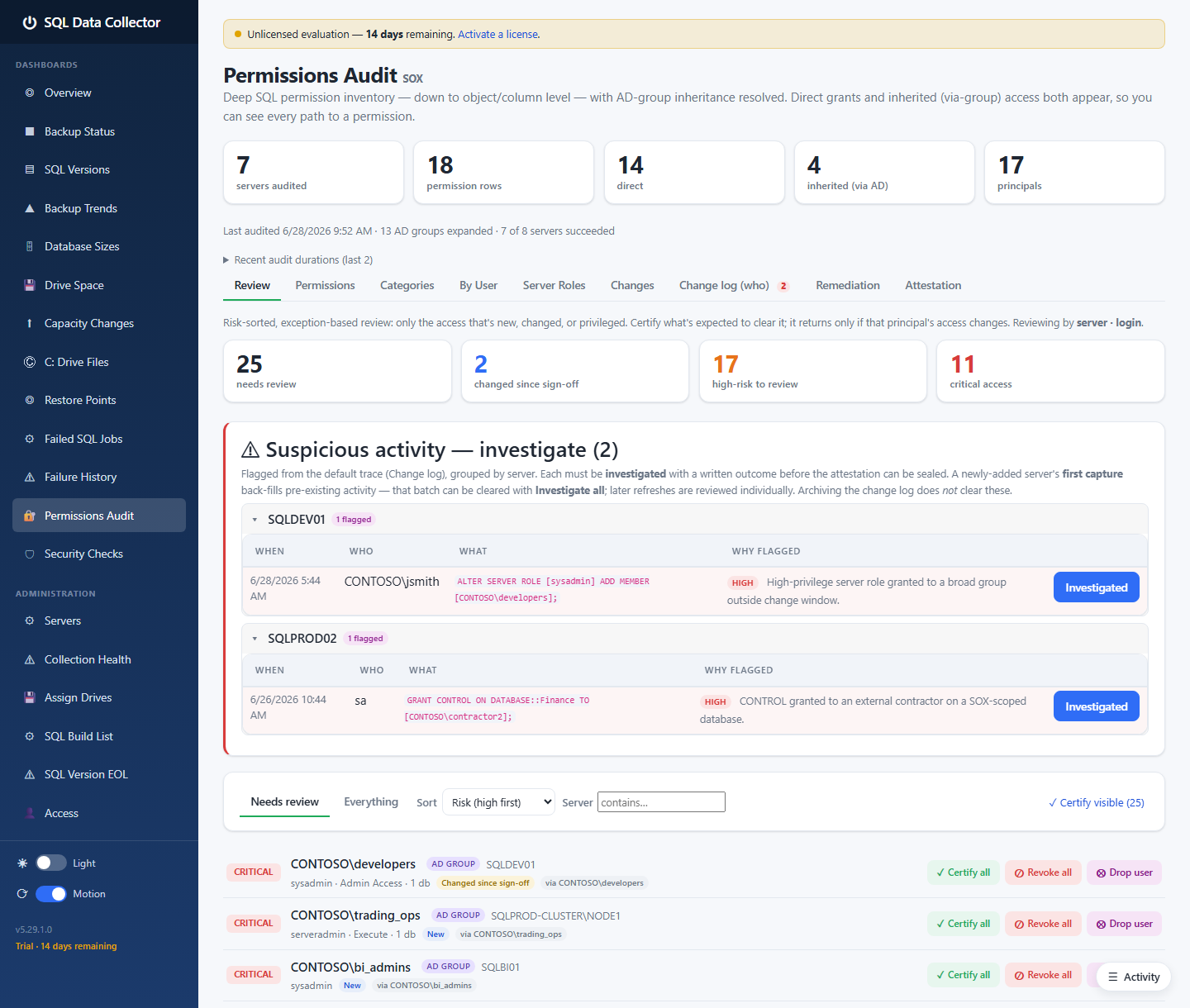
This is the most feature‑rich area. The collector captures server‑role membership and database
permissions across the fleet (expanding Active Directory groups so you see the real people behind a
group), and tracks them over time. The page provides:
- KPI cards — servers audited, admins, direct grants, over‑privileged principals, and more.
- Tabs — Review, Permissions, Categories, Server Roles, Change Log, Change Latest, Remediation, and
Attestation.
- A Suspicious activity panel that flags risky changes (for example a new sysadmin grant) for
investigation.
- A Review workflow where each principal's access can be approved or flagged, leading to a sealed,
certified attestation suitable for compliance evidence.
- A Remediation worklist that turns "this access should be removed" decisions into ready‑to‑run
SQL scripts and DBA to‑do items, which are then auto‑verified on the next audit.
Because every capture is timestamped and kept, you can answer "who could read the Finance database on
1 March?" months later.
3.13 Security Checks
Answers: "Is each server configured securely?"
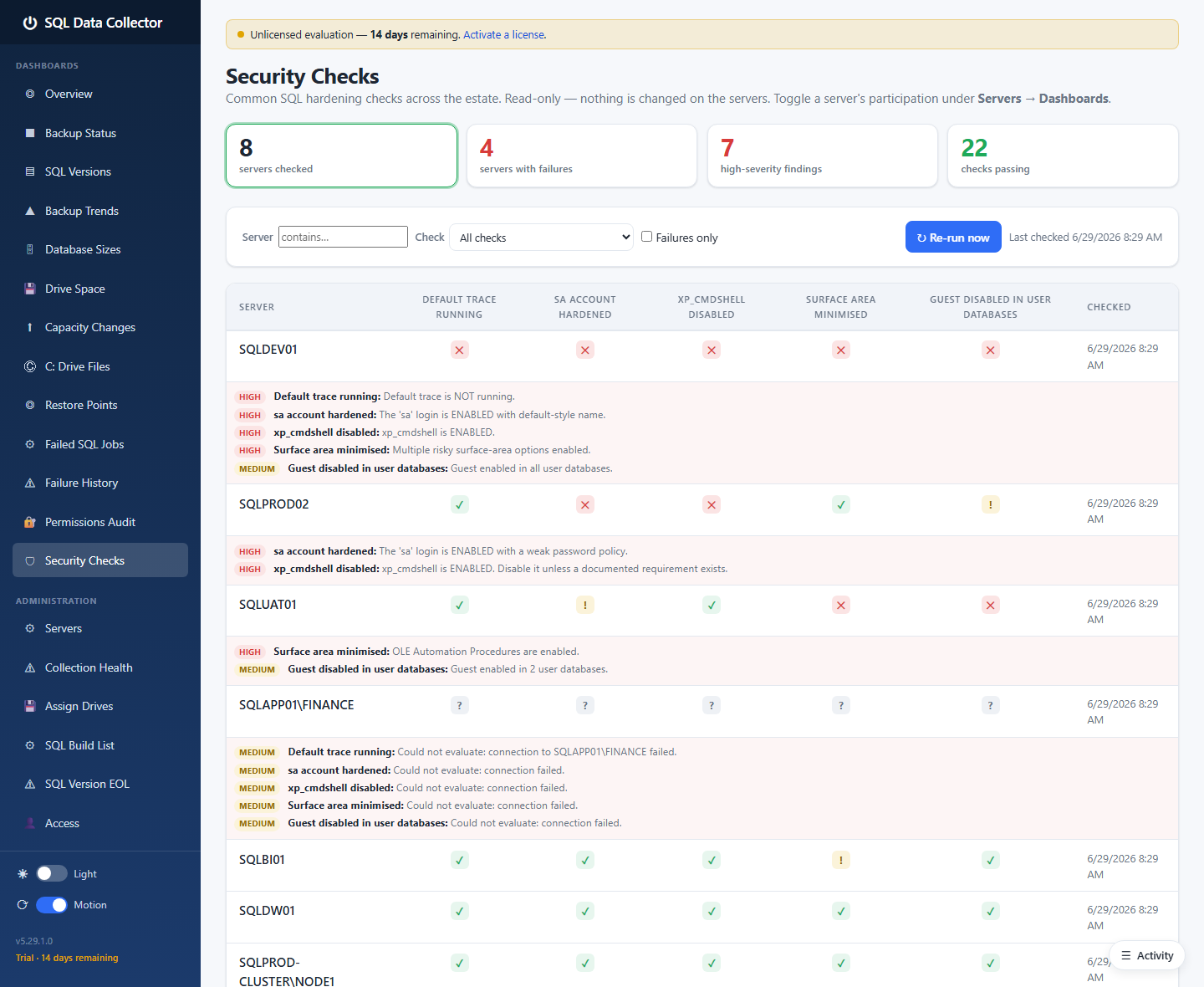
A set of SQL Server hardening checks runs per server (for example: default sa account state,
surface‑area configuration, guest access in user databases, login policy). Each result is Pass,
Warn, or Fail with a severity (Low / Medium / High) and an explanation. KPI cards summarise how
many servers are clean versus failing. Toggle a server's participation from the Servers page if a check
doesn't apply.
Continue to 4. Administration »
4. Administration
The Administration section of the sidebar is where you manage what gets monitored, who can see it,
and how the collector behaves. These pages are visible to administrators.
4.1 Servers
The starting point — add and manage the SQL Servers you monitor.
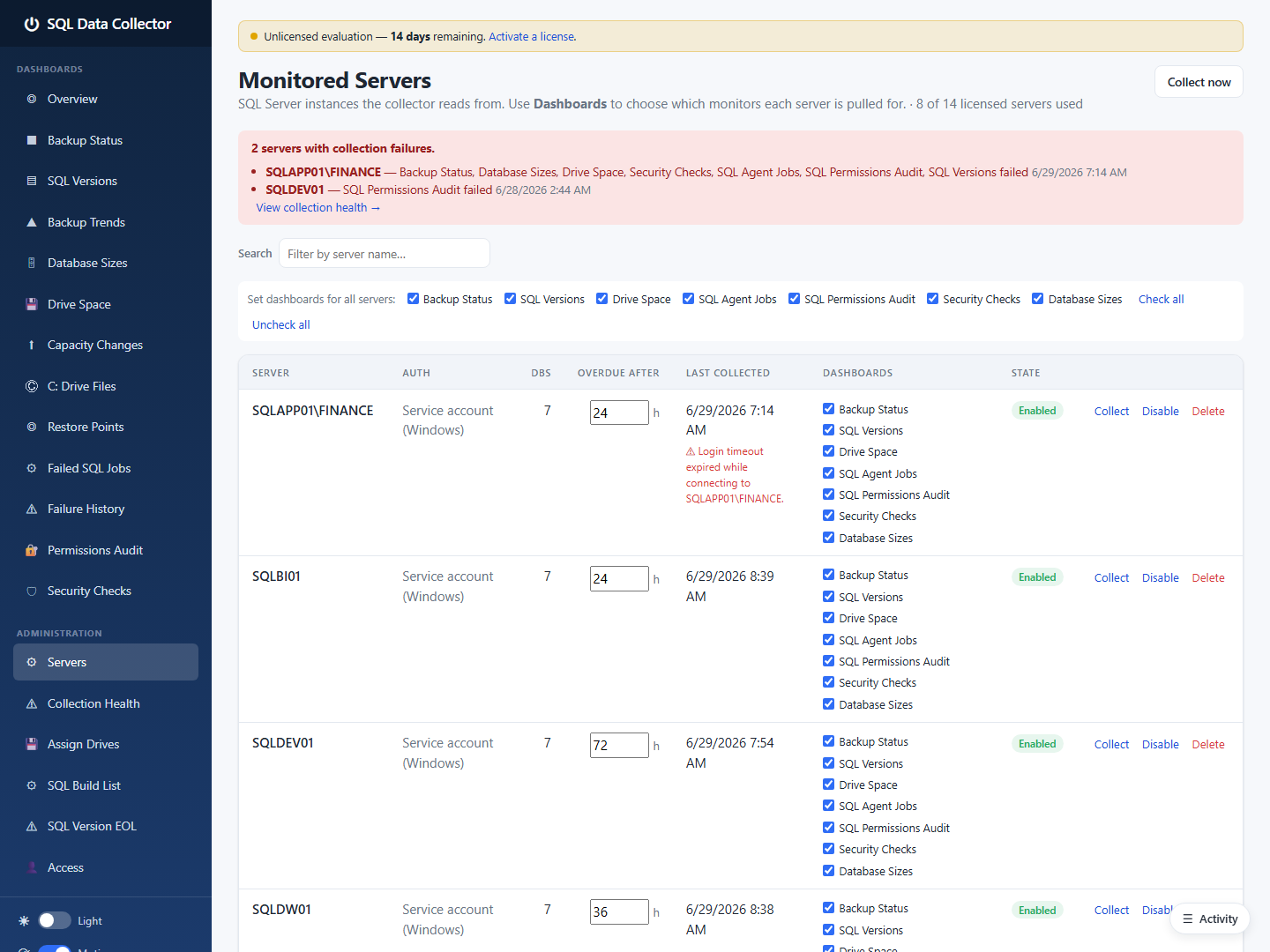
Each monitored server has:
- A name (
SERVER or SERVER\INSTANCE) and an authentication mode — Windows (the service
account) or a stored SQL login (the password is encrypted at rest).
- An Enabled toggle — disable a server to pause collection without deleting its history.
- An Overdue after (hours) value — the per‑server window that drives the Full backup red threshold
on Backup Status.
- A row of per‑monitor checkboxes (Backup Status, Drive Space, SQL Agent Jobs, SQL Permissions,
Security Checks, …) so you can exclude individual monitors on a given server.
If a server can't be reached, a banner highlights it and the Collection Health page explains why.
Collect now forces an immediate pass.
Licensing note. The number of servers you can actively collect is governed by your licence (or
the trial limit). Servers beyond the limit are listed but flagged as not collected.
4.2 Collection Health
Answers: "Is the collector itself working — and if not, why?"
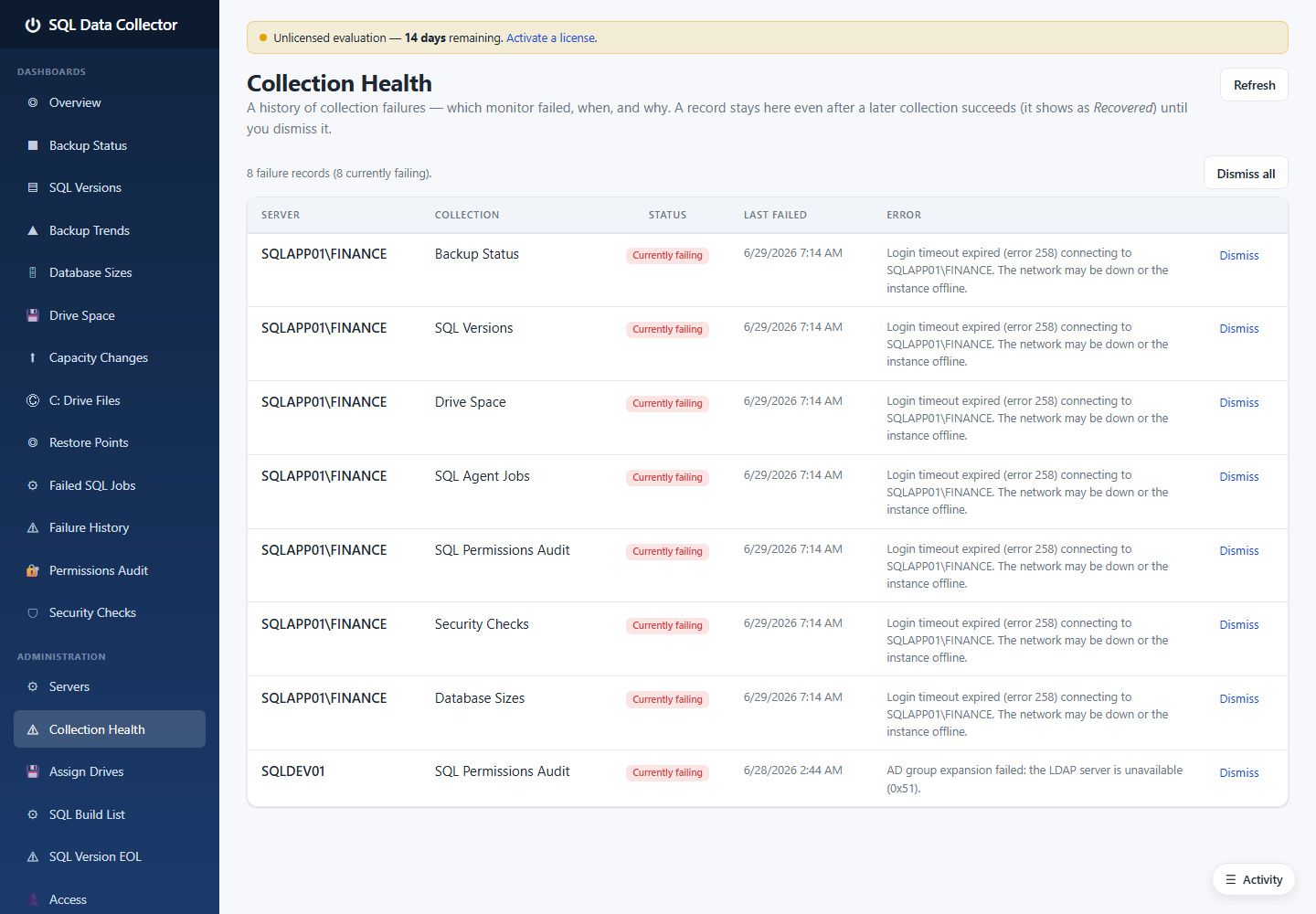
This page tracks each monitor on each server and flags any that are failing, with the last
success, last failure, and the actual error message (for example a login timeout because a
host is unreachable). It's the first place to look when a dashboard seems stale — it separates "the
data is genuinely fine" from "we haven't been able to collect it." Failing entries can be dismissed
once understood.
4.3 Assign Drives
Choose which volumes are monitored on each server.
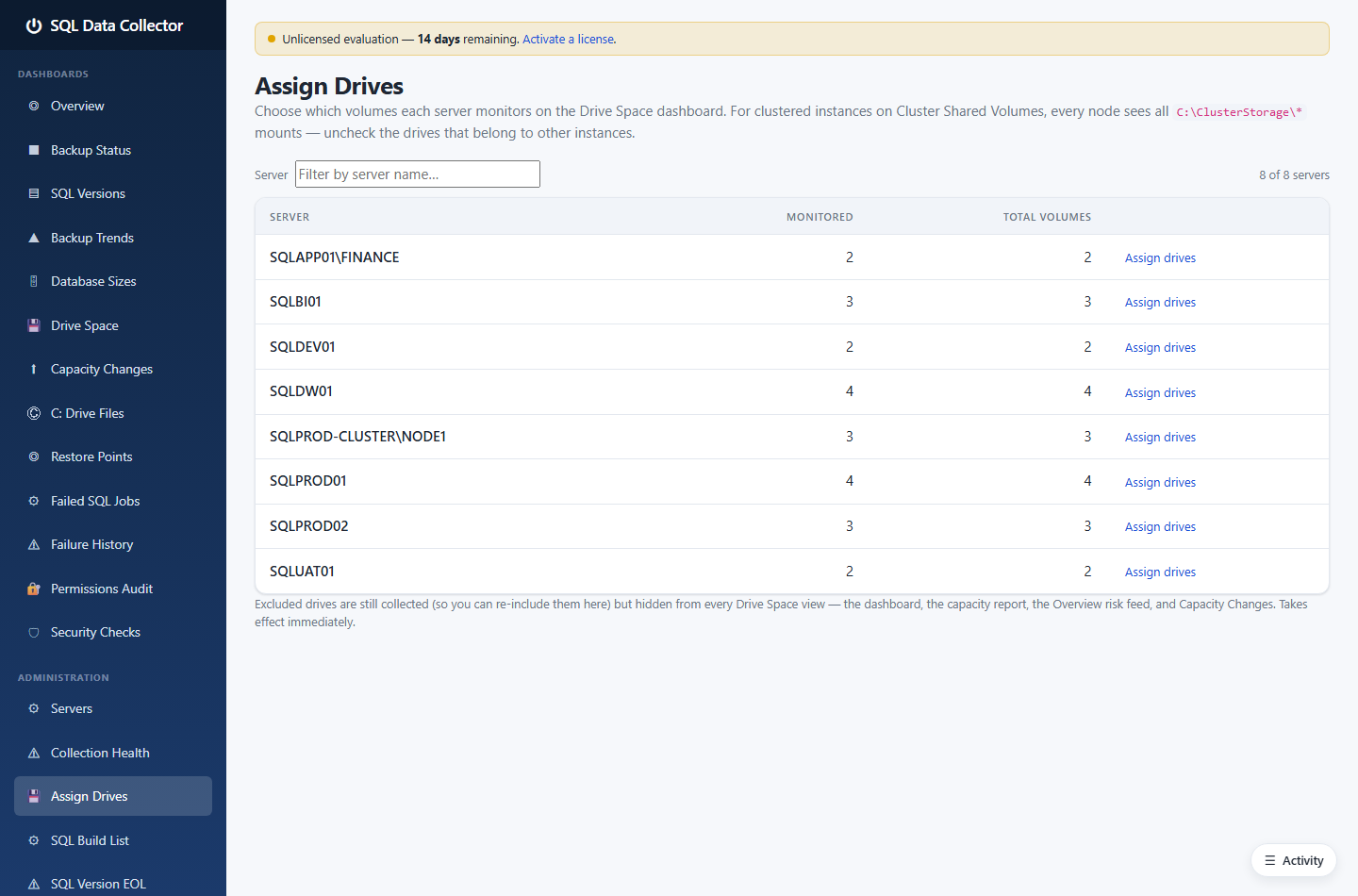
Clustered SQL Servers see every node's Cluster Shared Volumes, which would otherwise clutter Drive
Space with volumes that don't belong to the instance. Assign Drives lets you exclude specific
volumes per server (excluded volumes are still collected behind the scenes, so you can re‑include them
at any time). Servers with no exclusions monitor every volume, so non‑clustered hosts need no setup.
4.4 SQL Build List
Keep the SQL Server build reference up to date.
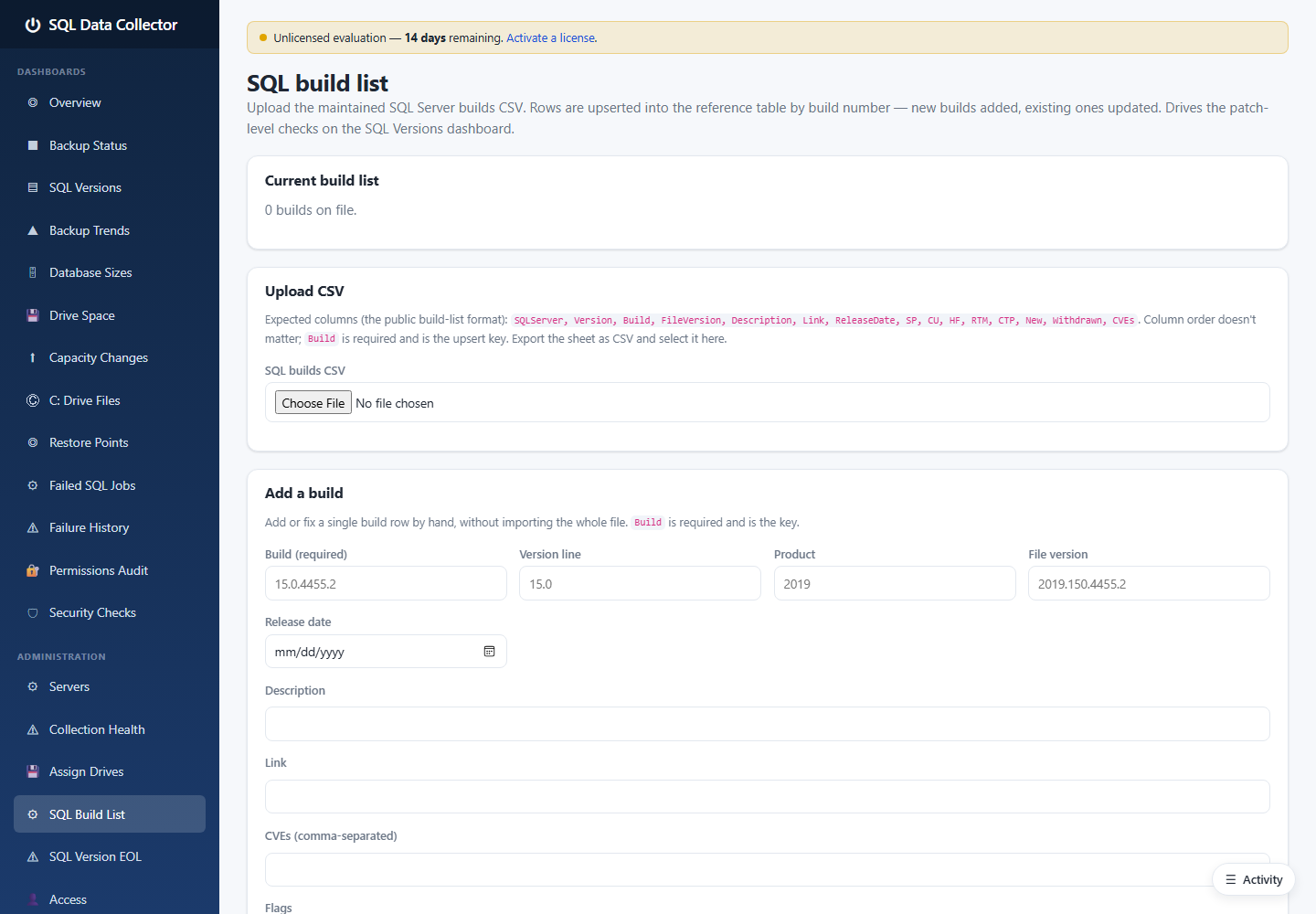
The SQL Versions dashboard maps each server's build number to a friendly description and patch level
using a build reference table. This page lets you import the public build list (export the
community‑maintained sheet to CSV and upload it — no internet access is required from the collector) or
add/edit a single build by hand. The columns mirror the standard build list (build number,
version, release date, SP/CU/HF flags, description, CVEs).
4.5 SQL Version EOL
Maintain the end‑of‑life dates that drive the lifecycle badges.
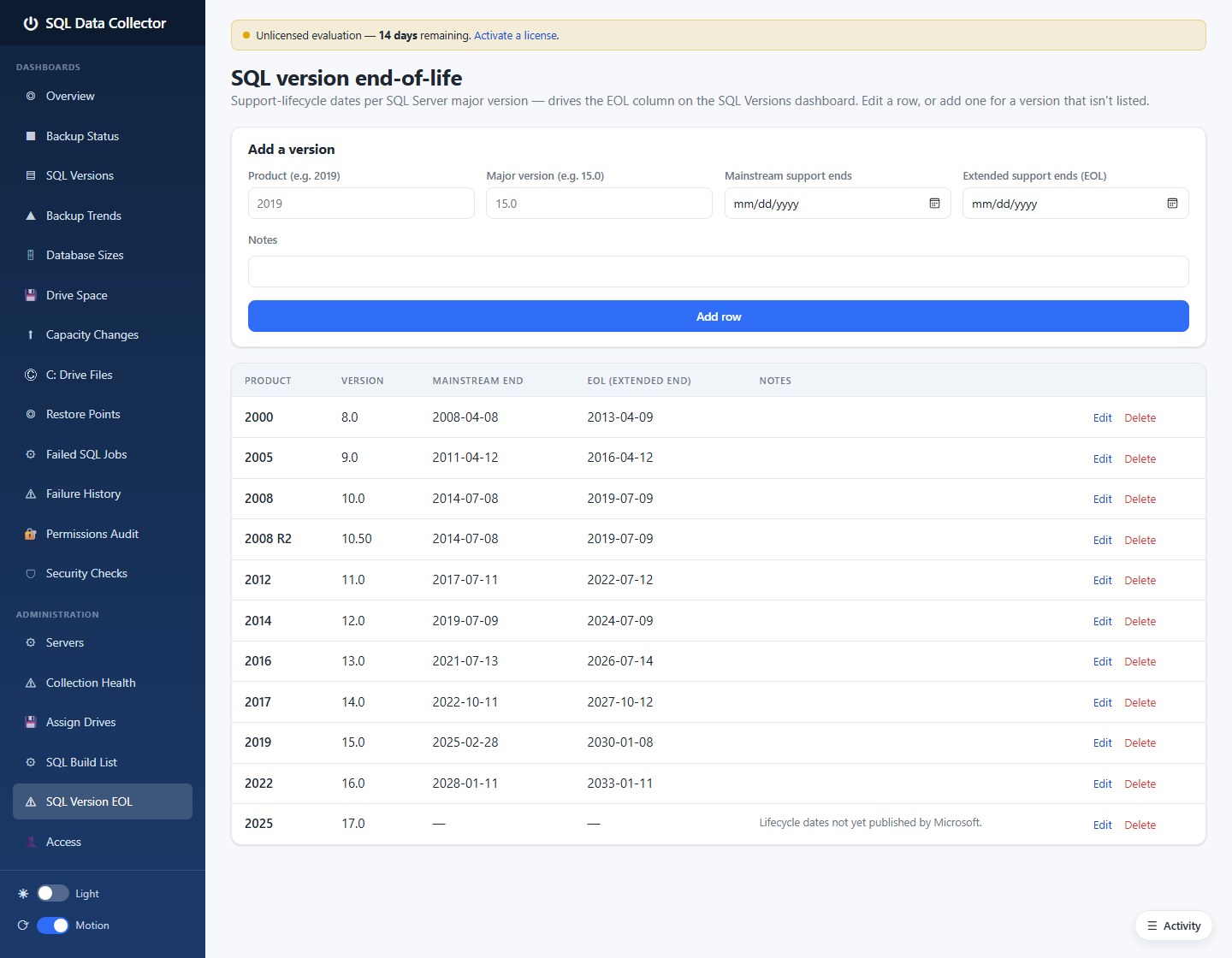
End‑of‑life is a lifecycle fact, not part of the build list, so it's maintained separately here: one
row per major version with its mainstream and extended (end‑of‑life) dates. These dates feed
the red/amber EOL badges on SQL Versions. The table ships pre‑seeded for SQL Server 2000 through 2025
and is editable one row at a time.
4.6 Access
Control who can sign in and what they can see.
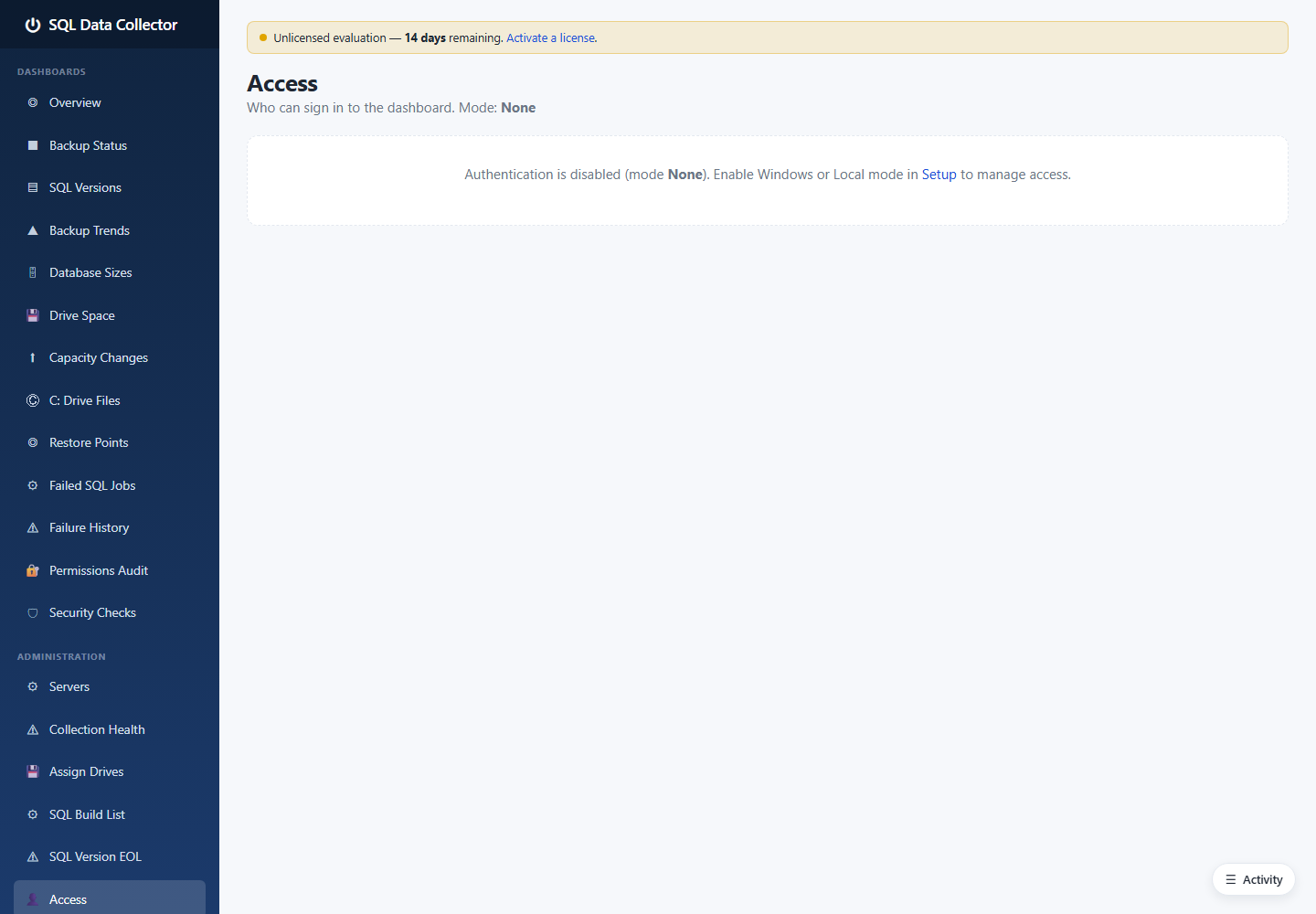
When sign‑in is enabled (Windows/AD or Local mode), the Access page is where you:
- Grant access to AD users or groups (Windows mode) or create local accounts (Local mode).
- Mark a principal as an administrator or auditor.
- Grant per‑dashboard view access — a viewer can be limited to, say, only Backup Status and Drive
Space.
- Set a default landing page per user.
In the demonstration build the sign‑in mode is None (localhost‑only), so the page simply explains
that authentication is disabled and points to Setup. Switch to Windows or Local mode in Setup to
manage access.
4.7 Login Audit
A record of who signed in (and who failed to).
When sign‑in is enabled, every authentication attempt — success or failure — is recorded with the
username, method, timestamp, IP address, and user agent. The Login Audit page (admins only) lists them
so you can spot repeated failures or unexpected sign‑ins. With sign‑in set to None, there is
nothing to audit.
4.8 Settings
Tune how the collector behaves.
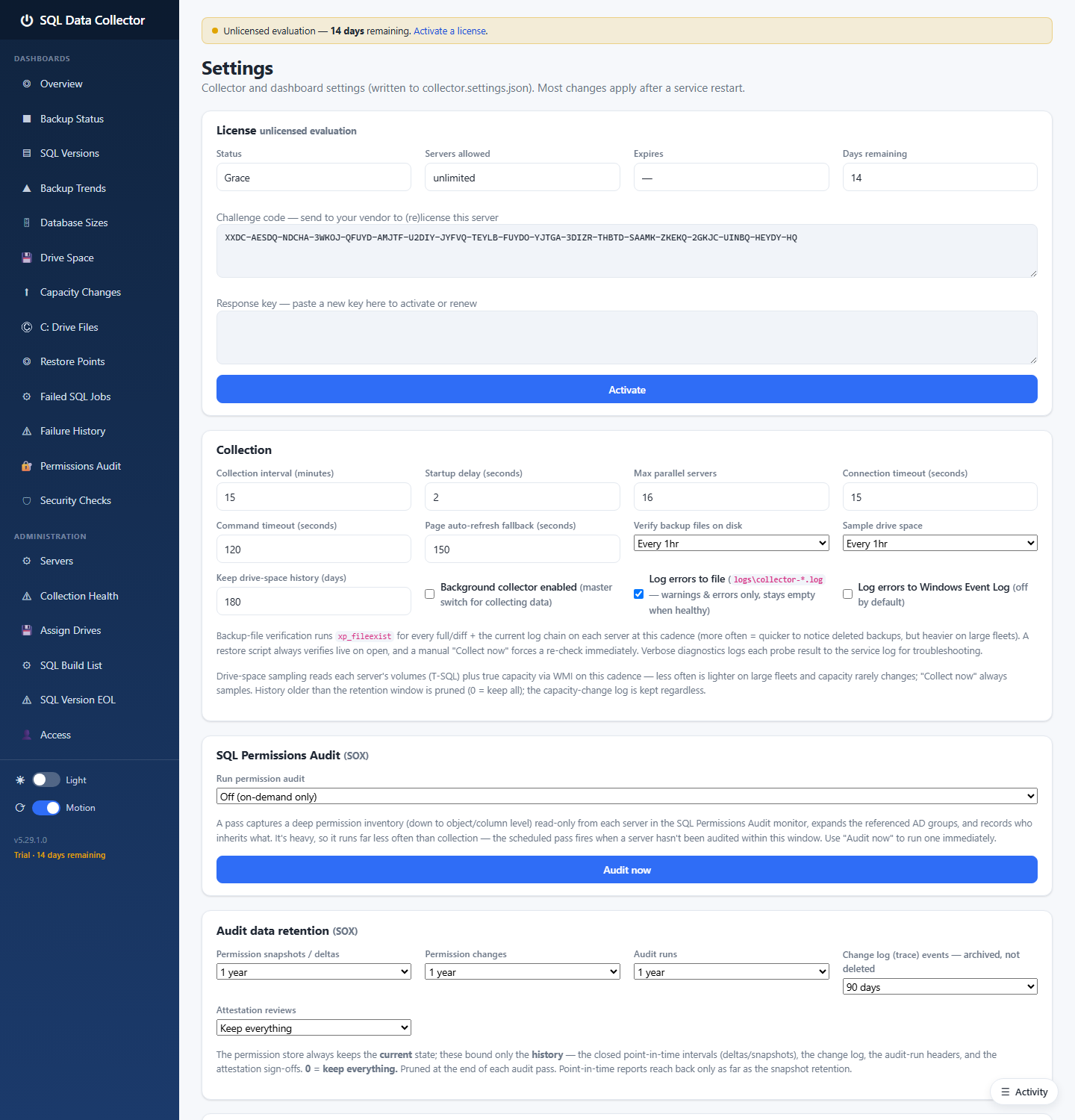
The Settings page exposes the operator‑editable configuration without hand‑editing
collector.settings.json. Notable groups:
- Collection — the collection interval, parallelism, connection/command timeouts, the
background‑collector master switch, logging destinations (file and/or Windows Event Log), and
per‑monitor verbose logging.
- Drive space — the drive‑space collection cadence and how long to retain drive samples.
- Backup timeliness & Restore points (RPO) — the thresholds that decide when a backup or restore
point is a warning versus a problem, including separate, more relaxed windows for system
databases.
- SQL Permissions Audit — the run mode and audit‑data retention.
- WMI authentication — whether to use the service account or specific credentials for the WMI
calls that read true drive capacity and last‑reboot time on remote hosts.
- Licence — status, the machine challenge string, and activation (see below).
Most changes apply on the next service restart.
4.9 Licensing
SQL Data Collector uses node‑locked, offline licensing. There is no phone‑home: activation is a
challenge/response exchange tied to the machine.
- A fresh install runs on a time‑limited trial (the banner at the top of every page and the
countdown under the version in the sidebar show how long remains).
- To activate, copy the challenge string from the Settings → Licence card (or the Activate page)
and send it to your vendor, who returns a response key that you paste back in.
- The licence governs how many servers can be actively collected.
Because the licence is bound to the machine's identity, moving the install to a different host requires
a new activation.
That completes the administration tour. Back to the top.